"Computer audio" — also called system audio, internal audio, or desktop audio — is the sound your computer itself is playing: the other people in a call, a webinar, a video, a stream. Recording it is strangely harder than recording a microphone, because operating systems don't treat "what's coming out of the speakers" as an input you can just select. This guide covers the ways that actually work on Windows and Mac — and the shortcut worth taking when what you're really recording is a meeting.
First: what are you actually recording?
The right tool depends on the answer. If it's a meeting, call, or webinar, skip the general-purpose rigs below and use a meeting recorder — you need mic and system audio together, and you probably want the words, not just the waveform. If it's anything else (app sounds, your own project's playback, a livestream you have rights to), the free general-purpose tools are Audacity and OBS. And if it's music or shows from a streaming service — that's what downloads and subscriptions are for; ripping DRM-protected streams violates terms of service and likely copyright.
Windows: three ways
1. Audacity's WASAPI loopback (free, audio-only)
Audacity can record system audio on any modern Windows machine with no extra drivers, through a mode called WASAPI loopback:
- In Audacity, open Audio Setup and set the host to Windows WASAPI.
- As the recording device, pick your playback device with (loopback) after its name — e.g. "Speakers (loopback)".
- Hit record and play the audio. You're capturing exactly what the speakers receive — clean, digital, no room noise.
One quirk of loopback capture: if the computer plays silence, the recording may simply pause until sound resumes. And note it captures everything the device plays — notification pings included, so silence what you don't want on the take.
2. OBS Studio (free, great when you also want video)
OBS records desktop audio out of the box on Windows — add a Desktop Audio source (it's usually on by default), plus a mic source if you want both, and record. You get a video file even if you only care about the audio track, so it's the right tool when the screen matters too and overkill when it doesn't.
3. Stereo Mix (legacy, if you have it)
Older audio drivers expose a Stereo Mix recording device that mirrors playback. If it exists on your machine (Sound settings → Recording), any recorder can use it like a microphone. On many modern laptops it's absent or disabled — if so, use WASAPI loopback above rather than hunting for driver switches.
Mac: why it's harder, and what works
macOS doesn't offer system audio as an input at all — QuickTime and the screenshot toolbar record the microphone, not what the Mac is playing. Two ways around it:
1. A virtual audio driver: BlackHole (free)
BlackHole is a free, open-source virtual audio device. The idea: macOS sees it as both an output and an input, so audio routed into it can be recorded from it.
- Install BlackHole (2ch is fine for this).
- In Audio MIDI Setup, create a Multi-Output Device containing your speakers and BlackHole — so you can still hear while recording — and switch the Mac's output to it.
- In QuickTime or Audacity, choose BlackHole as the input and record.
- Switch your output back to normal afterwards.
It works well, but it's plumbing — easy to leave your Mac's audio routed somewhere confusing. (Loopback, a paid app, does the same job with a friendlier interface.)
2. Apps built on Apple's capture APIs
Recent macOS versions let apps capture system audio through Apple's screen-capture frameworks — no virtual driver, just a permission prompt. OBS uses this for desktop-audio capture on modern macOS, and it's the same mechanism meeting recorders like Vowen use to hear the far side of a call. If BlackHole feels like too much rigging, this class of app is the answer.
When it's a meeting: record both sides, get the words
Most people searching for "record computer audio" are actually trying to record a conversation — a Zoom call, a Teams stand-up, a webinar, an interview. The rigs above technically work, but they leave you with two problems: your own voice isn't on the take (loopback hears the speakers, not your mic), and you end up with an audio file you still have to listen back through.
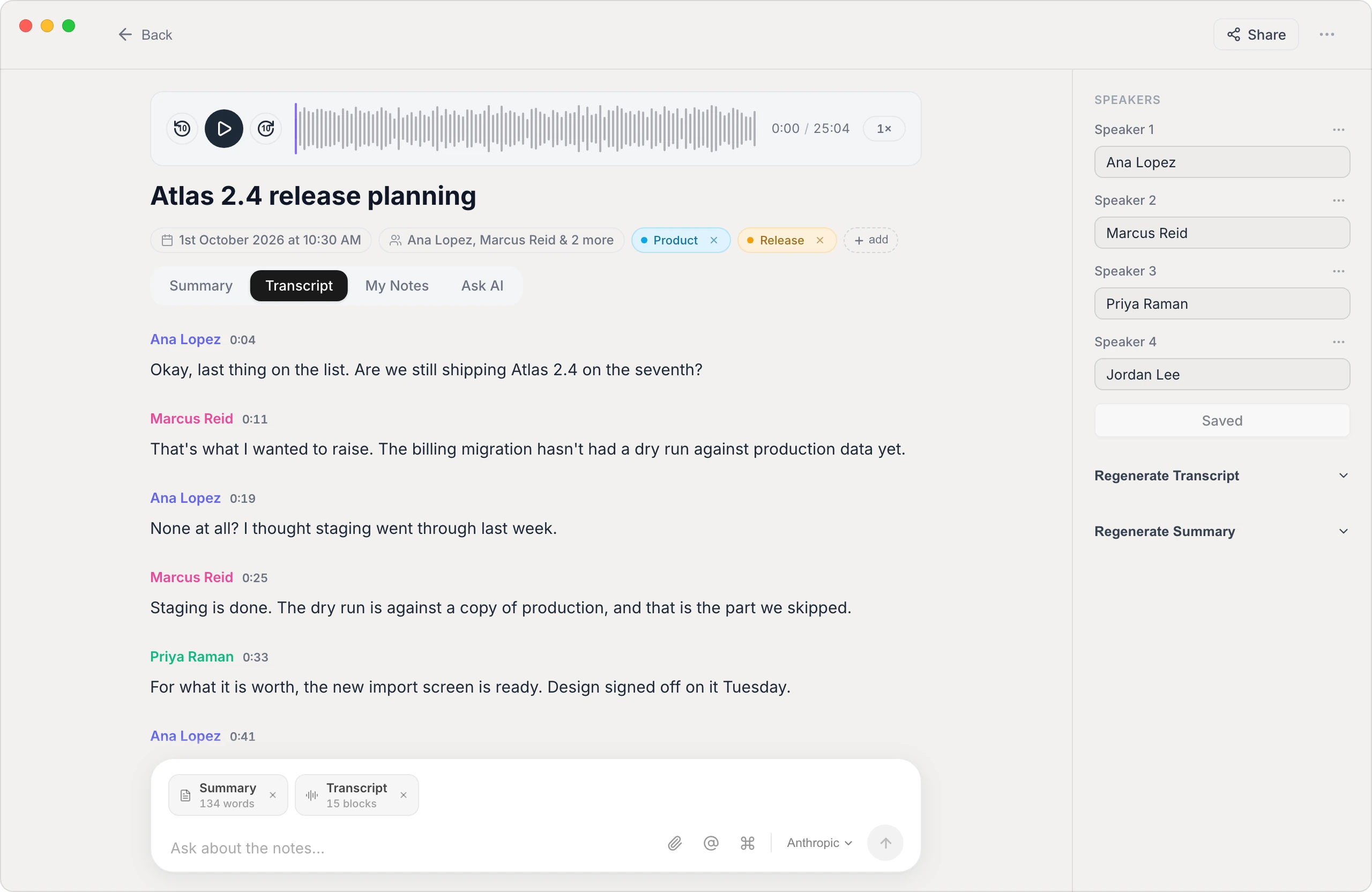
A meeting-aware recorder solves both. Vowen captures the system audio and your microphone together, on Zoom, Teams, Meet, Webex, or anything else that plays through your speakers — no bot in the call — and turns the recording into a speaker-labeled transcript with structured notes, processed on-device so the conversation never leaves your machine. You keep the audio too: replay it in the app or export the file. The details are on the meeting recorder page, and the same capture powers Zoom transcription and recording online lectures. If the audio is people talking, record it with consent — announce it at the top; laws vary between one-party and all-party consent.
Quick reference
- Windows, audio only: Audacity → Windows WASAPI → speakers (loopback).
- Windows, audio + screen: OBS with a Desktop Audio source.
- Mac, audio only: BlackHole + Multi-Output Device, record BlackHole in QuickTime or Audacity.
- Mac, audio + screen: OBS on a recent macOS.
- Any meeting or call, either platform: Vowen — mic + system audio together, on-device transcript, notes, and the audio file. Free tier on Mac and Windows, and a one-time price if you outgrow it.
See it in Vowen
Frequently asked questions
Why can't QuickTime record my Mac's internal audio?
Apple doesn't expose system audio as a recordable input, so QuickTime's screen and audio recordings only offer microphone sources. To capture internal audio on a Mac you either route it through a virtual audio driver like BlackHole, or use an app built on Apple's screen-capture audio APIs (OBS on recent macOS, or a meeting recorder like Vowen for calls).
Does Windows still have Stereo Mix?
Sometimes. Stereo Mix is a legacy feature of some audio drivers — on many modern machines it's missing or disabled by default. Check Sound settings → Recording devices; if it's not there, don't fight it: Audacity's WASAPI loopback mode and OBS both capture system audio on any Windows machine without Stereo Mix.
Can I record system audio and my microphone at the same time?
Yes, but most simple recorders capture one or the other. In OBS you add both sources; in Audacity you'd overdub on a second track. If the reason you need both is a call or meeting, a meeting recorder does this by design — Vowen captures your mic and the meeting audio together and transcribes both sides with speaker labels.
Is it legal to record audio playing on my computer?
Recording your own meetings and calls is generally fine with the participants' consent — laws vary between one-party and all-party consent, so announce it. Ripping DRM-protected music or streaming content is a different matter: it typically violates the service's terms and may violate copyright law. Record conversations you're part of, not catalogs you don't own.
What's the best free way to record computer audio?
For general capture: Audacity (WASAPI loopback) on Windows, and OBS or BlackHole + QuickTime on a Mac — all free. For meetings specifically, Vowen's free tier records your mic and the call audio together and transcribes on-device, which replaces the record-then-transcribe two-step entirely.
Talk instead of type.
Vowen is voice-to-text that works in any app, on Mac and Windows. Dictation is free and unlimited, no account required.