There are three realistic ways to record a Google Meet: Meet's built-in recorder (paid Workspace plans only, saves to the organizer's Drive), Meet transcripts (a separate feature with its own plan gating, text only), and recording on your own computer — the only route that works on a free account and doesn't depend on the host's plan or permission settings. This guide covers all three, plus consent and what to do with the recording afterwards. (If you already have a recording and just need it turned into text, go straight to transcribing a Google Meet. Recording a Zoom call instead? See the Zoom guide — the same logic, different buttons.)
Method 1: Meet's built-in recording (paid Workspace plans)
If your organization's plan includes it and your admin has enabled recording, the flow is simple:
- In the meeting, open Activities (bottom right) → Recording → Start recording. You can optionally record captions too.
- Everyone in the meeting is notified that recording has started — including phone dial-ins and mobile users.
- Stop it from the same menu (it also stops automatically when everyone leaves, and hard-stops at 8 hours).
- The file lands in the organizer's Google Drive under My Drive → Meet Recordings; the organizer and whoever started the recording get an email link. Processing takes a while — captions can take a few hours to become playable.
Who can press the button: the host, co-hosts, and — when the host's "Host management" setting is off — people from the host's organization. Guests from outside the organization get notified but can't control the recording, and if you join only to present, you can't record. What gets captured is the active speaker plus whatever is presented — not your other windows, and not breakout rooms, which can't be recorded at all.
Which plans include recording?
This is the part that surprises people: recording is a paid feature, and not every paid plan has it. Google's own documentation lists it for Business Standard and Plus, the Enterprise editions, Essentials, Education Standard/Plus, Workspace Individual — and on the consumer side, Google One plans with 2 TB+ storage. Business Starter doesn't get it, and neither do free personal accounts. Plan lineups shift, so check your edition — but if there's no Recording option under Activities, this is usually why.
Method 2: Meet transcripts (text, not video)
If what you actually want is a written record, Meet has a separate Transcripts feature — note it's gated differently from recording (some editions get recording but not transcripts). It saves a Google Doc of who said what to the organizer's Drive, usually within a few hours. Its limits: host-side control again, spoken words only, and the transcript lives in the organizer's account — as a participant you're depending on someone to share it. We cover the details in the Google Meet transcription guide.
Method 3: Record on your own computer (any account)
The third route sidesteps plan gating entirely: software on your machine captures the meeting audio as it plays through your computer, plus your microphone. This works on a free Gmail account, as a guest in someone else's meeting, and on every plan — because it doesn't use Meet's recorder at all.
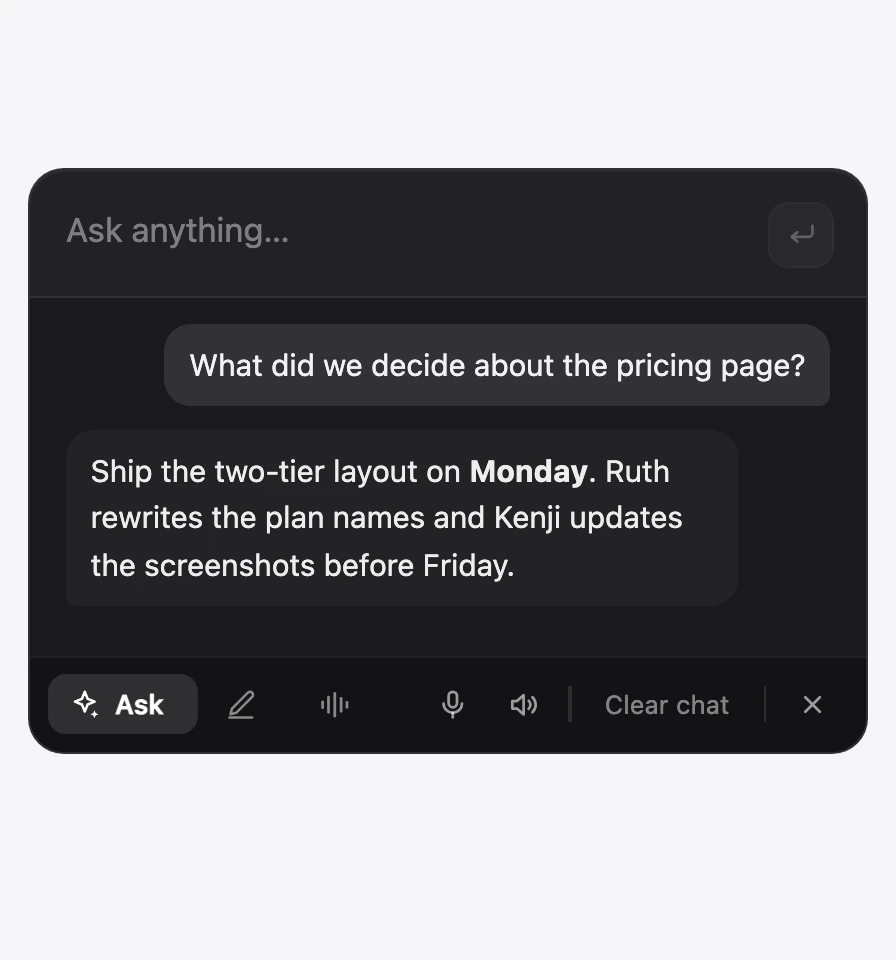
With Vowen, the flow looks like this: the app detects you're on a call and offers to start, records the conversation from your computer (no bot joins the meeting), and transcribes on-device — the audio stays on your machine rather than going to a cloud service. When the call ends you have a speaker-labeled transcript and a structured summary with decisions and action items — usually more useful than a video file in someone else's Drive. And it works identically on Zoom, Teams, or any other call.
Recording without the host knowing — the honest answer
Technically: Meet's built-in recorder notifies everyone and can't be hidden, while software recording on your own computer doesn't trigger Meet's notice. Legally and ethically: the tool is not the issue — consent is. Recording laws vary by place; in some US states every participant must consent, and in most workplaces surprising colleagues with a recording is corrosive even where it's legal. The absence of an automatic notification doesn't change what you should do: say you're recording, say why, and stop if someone objects. For meetings you host, put a standing line in the invite: "this call is recorded for notes."
After the recording: from file to notes
- Transcribe it. If you used Meet's recorder, download the MP4 from Drive and transcribe it on your own machine — or capture the call live with Vowen and skip the file entirely.
- Summarize it. Decisions, action items, owners — a consistent meeting-notes template is what makes recordings worth having.
- Compare the tooling. Our AI note taker roundup covers how the bot, cloud, and on-device approaches differ.
Which method should you use?
- You host, your plan includes it, the video will be shared: built-in recording — the Drive link is the point.
- You just need a written record and have the right plan: Meet transcripts, or better, an on-device note taker that also gives you summaries.
- Free account, guest in someone else's meeting, or you want notes rather than video: record on your own computer with an on-device tool like Vowen — with the meeting's knowledge — and let the transcript and summary be the artifact. Vowen's core features are free, with Pro as a one-time purchase.
See it in Vowen
Frequently asked questions
Can I record a Google Meet with a free Google account?
Not with Meet's built-in recorder — recording isn't available on free personal accounts (Google gates it to paid Workspace editions, Workspace Individual, and Google One plans with 2 TB+ storage). What works on any account is recording on your own computer with a desktop recorder or note-taking app — with the meeting's knowledge and consent.
Does Google Meet notify participants when recording starts?
Yes. When the built-in recording starts or stops, everyone in the meeting is notified — including people on mobile apps and dial-in participants — and there is no documented way to hide that notice. Software recording on your own computer doesn't trigger Meet's notification, which is exactly why you should announce the recording yourself.
Where do Google Meet recordings go?
To the meeting organizer's Google Drive, in a "Meet Recordings" folder in My Drive. The organizer and whoever started the recording get an email link, and if the recording started during the scheduled time it's also attached to the Calendar event. Note the file lands in the organizer's Drive — not necessarily yours.
How long can a Google Meet recording be?
Meet's built-in recording stops automatically after 8 hours. Also worth knowing: breakout rooms can't be recorded at all, and in-meeting chat is only saved alongside the recording in some configurations. Recording on your own machine has none of these platform limits.
Talk instead of type.
Vowen is voice-to-text that works in any app, on Mac and Windows. Dictation is free and unlimited, no account required.