Talking is faster than typing — most people speak around 130 words per minute but type fewer than 40. If you spend your day writing emails, notes, or messages on a Mac, dictation can be one of the biggest speed upgrades available to you. This guide covers how to turn on the dictation built into macOS, where it falls short, and how to get a faster, more private setup.
How to turn on Apple Dictation
macOS ships with a built-in dictation feature. Here is how to enable it:
- Open System Settings from the Apple menu.
- Go to Keyboard in the sidebar.
- Scroll to Dictation and toggle it on.
- Choose your language and a keyboard shortcut (the default is pressing the
Controlkey twice).
Once it is on, place your cursor in any text field, trigger the shortcut, and start speaking. Press the shortcut again (or stop talking) to finish. You can also say punctuation out loud — "comma", "period", "new line" — and macOS will insert it.
Where Apple Dictation falls short
Built-in dictation is convenient and free, but it was designed for short bursts, not sustained work. A few limits you will run into quickly:
- Accuracy on names and jargon. Technical terms, product names, and acronyms are often guessed wrong, and there is no good way to teach it your vocabulary.
- Little control over formatting. You get raw text — cleaning up filler words, fixing punctuation, or reshaping it into a tidy paragraph is on you.
- It trails off on longer passages. Dictate more than a few sentences and accuracy tends to drift.
A faster, more private alternative
If you dictate often, a purpose-built tool makes a real difference. Vowen adds system-wide voice to text to your Mac that works in any app via a global hotkey — Notes, Mail, Slack, your code editor — with a few advantages over the built-in option:
- On-device and private. Transcription can run entirely on your Mac, so your voice does not have to leave your computer.
- Custom vocabulary. Teach it the names and terms you use, and it remembers them.
- AI cleanup. Optionally turn rambling speech into polished text — filler removed, punctuation fixed, formatted the way you want.
Tips for better dictation
- Speak in complete thoughts rather than word by word.
- Use a decent microphone — even AirPods beat a noisy built-in mic.
- Dictate first, edit second. Get the words down, then clean up — it is faster than perfecting each sentence as you go.
- Learn a couple of punctuation commands; they quickly become habit.
The bottom line
Apple Dictation is a fine place to start, and it costs nothing to try. But if voice becomes part of how you work every day, a dedicated tool with custom vocabulary, AI cleanup, and on-device privacy will save you far more time. See how Vowen does voice to text on Mac — it is free to download, with no account required.
See it in Vowen
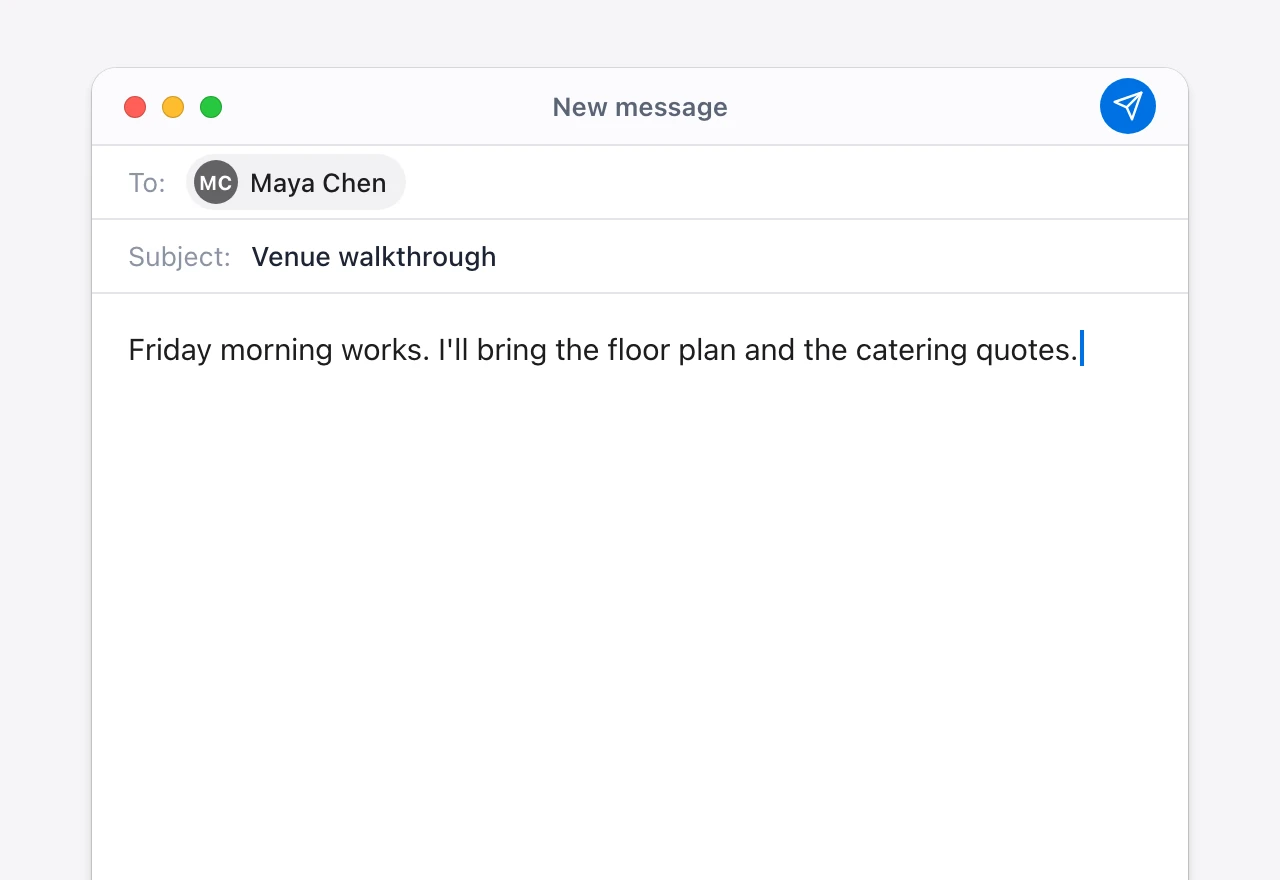
Talk instead of type.
Vowen is voice-to-text that works in any app, on Mac and Windows. Dictation is free and unlimited, no account required.