Outlook has speech to text built in: click the Dictate button on the Message tab, talk, and your email types itself. That's the short answer. The longer answer is that Dictate only exists in Microsoft 365 versions of Outlook, needs an internet connection, and stops at the edge of the message window. This guide covers the built-in setup, the fixes when the button is missing, and how to dictate email in any mail app — including Gmail — with one tool.
Use Outlook's built-in Dictate
- Open Outlook and start a new email (or a reply).
- Click into the message body — Dictate stays greyed out while your cursor is in the To or Subject fields.
- On the Message tab of the ribbon, click Dictate (the microphone icon).
- The first time, allow microphone access when Windows or macOS asks.
- When the mic turns on, speak normally. Say punctuation out loud: "comma," "period," "new paragraph."
- Click Dictate again to stop, then proofread before you send.
The Dictate toolbar has a small settings gear where you can pick your spoken language and turn on automatic punctuation. The same button exists in Outlook on the web and in the Outlook mobile apps, so the workflow carries across devices.
If Dictate is missing or greyed out
- You're not on Microsoft 365. Dictate ships only with the subscription version of Office. One-time-purchase editions (Office 2019, 2021) don't include it.
- You're offline. Outlook's speech to text runs in Microsoft's cloud, so no connection means no Dictate.
- Your cursor is in the wrong field. Click into the message body — Dictate doesn't work in the subject line.
- Outlook is out of date or signed out. Update Office, restart Outlook, and check you're signed in to your Microsoft 365 account.
- The wrong microphone is selected. Check your system sound settings — if the OS is listening to a dead input, Dictate hears nothing.
The limits of Outlook's speech to text
Even when everything works, the built-in Dictate has three real trade-offs. It's Outlook-only — switch to Gmail in a browser, Slack, or a document and the button isn't there. It's subscription-gated, so a perpetual-license copy of Office can't use it. And it's cloud-processed: your voice is sent to Microsoft's servers, which may not fly for confidential client email or anything covered by a privacy policy at work.
Dictate email in any app — Outlook, Gmail, Apple Mail
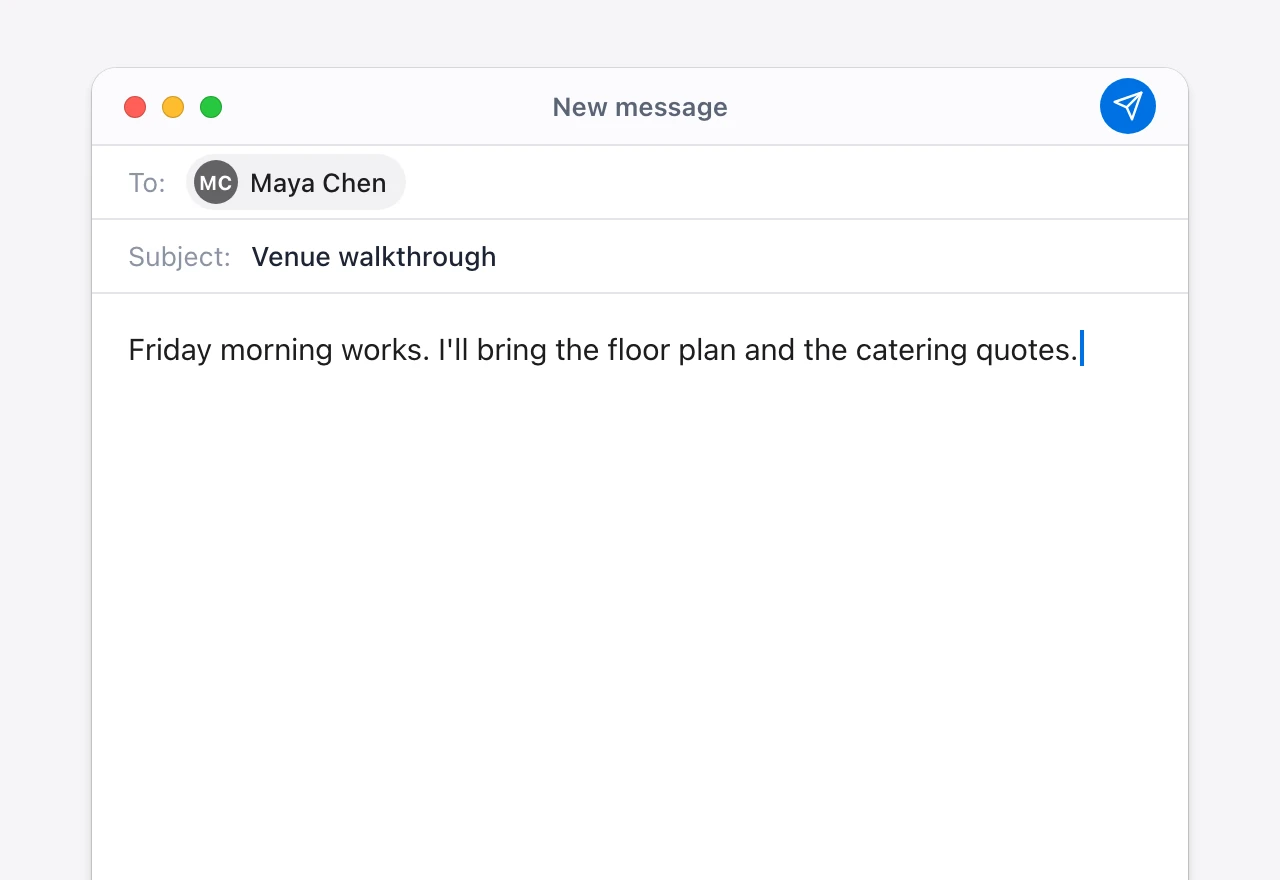
If email is only part of your day, a system-wide tool makes more sense than a per-app button. Vowen turns speech into text anywhere your cursor is on Mac and Windows: press one hotkey, talk, and the words are typed into Outlook, Gmail in any browser, Apple Mail, Thunderbird — and everything that isn't email, too.
- Works without Microsoft 365. Vowen types through your keyboard, so it dictates into any version of Outlook — and into webmail, where there's no built-in dictation at all on desktop.
- On-device by default. Your voice can stay on your computer, which keeps confidential email confidential and works offline.
- AI cleanup. Optionally strip the ums and false starts so a spoken draft arrives as a clean, professional email — no "comma" announcing required.
- Custom vocabulary. Teach it client names, product terms, and abbreviations so they come out spelled right.
Setup takes a couple of minutes — see the guides for dictation on Windows and voice to text on Mac. If most of your writing happens in documents rather than email, the same idea applies in Microsoft Word and Google Docs.
Tips for email that doesn't sound dictated
- Say the skeleton first. Greeting, one sentence per point, sign-off. Email is short-form — structure survives dictation better than a monologue.
- Don't self-edit out loud. Speak the whole draft, then fix wording by hand (or let AI cleanup do it). Stopping mid-sentence to rephrase is what produces garbled text.
- Proofread names and numbers. Recipients, dates, and amounts are where speech recognition errors actually cost you.
The bottom line
For occasional messages, Outlook's built-in Dictate is fine: Message tab → Dictate → talk — as long as you're on Microsoft 365 and online. If the button is missing, it's almost always the Office edition or the connection. And if you want one dictation workflow for every app you write in — with your audio staying on your machine — a system-wide, on-device tool does the same job everywhere. Vowen is free to start, no account required.
See it in Vowen
Frequently asked questions
How do I turn on speech to text in Outlook?
Start a new email, click into the message body, and select the Dictate button (a microphone icon) on the Message tab of the ribbon. When the mic activates, start talking and your words are typed into the email. Dictate requires a Microsoft 365 subscription and an internet connection.
Why is the Dictate button missing in Outlook?
Dictate only ships with Microsoft 365 versions of Outlook — one-time-purchase Office editions don't include it. It also needs an internet connection, because your speech is processed in Microsoft's cloud, and your cursor has to be in a message body (not the subject line) for the button to be active.
Can I dictate an email without Microsoft 365?
Yes. You can use your operating system's voice typing (Win + H on Windows, or Dictation on macOS), or a system-wide dictation app like Vowen that types into any email client — Outlook, Gmail in the browser, Apple Mail, Thunderbird — through your keyboard, with on-device processing.
How do I add punctuation when dictating email?
In Outlook's Dictate, say the punctuation out loud — 'comma', 'period', 'question mark', 'new paragraph'. Tools with AI cleanup, like Vowen, can punctuate for you automatically, so a spoken ramble lands in the email as clean, ready-to-send sentences.
Talk instead of type.
Vowen is voice-to-text that works in any app, on Mac and Windows. Dictation is free and unlimited, no account required.